Fleet accounts
Cards for the whole fleet
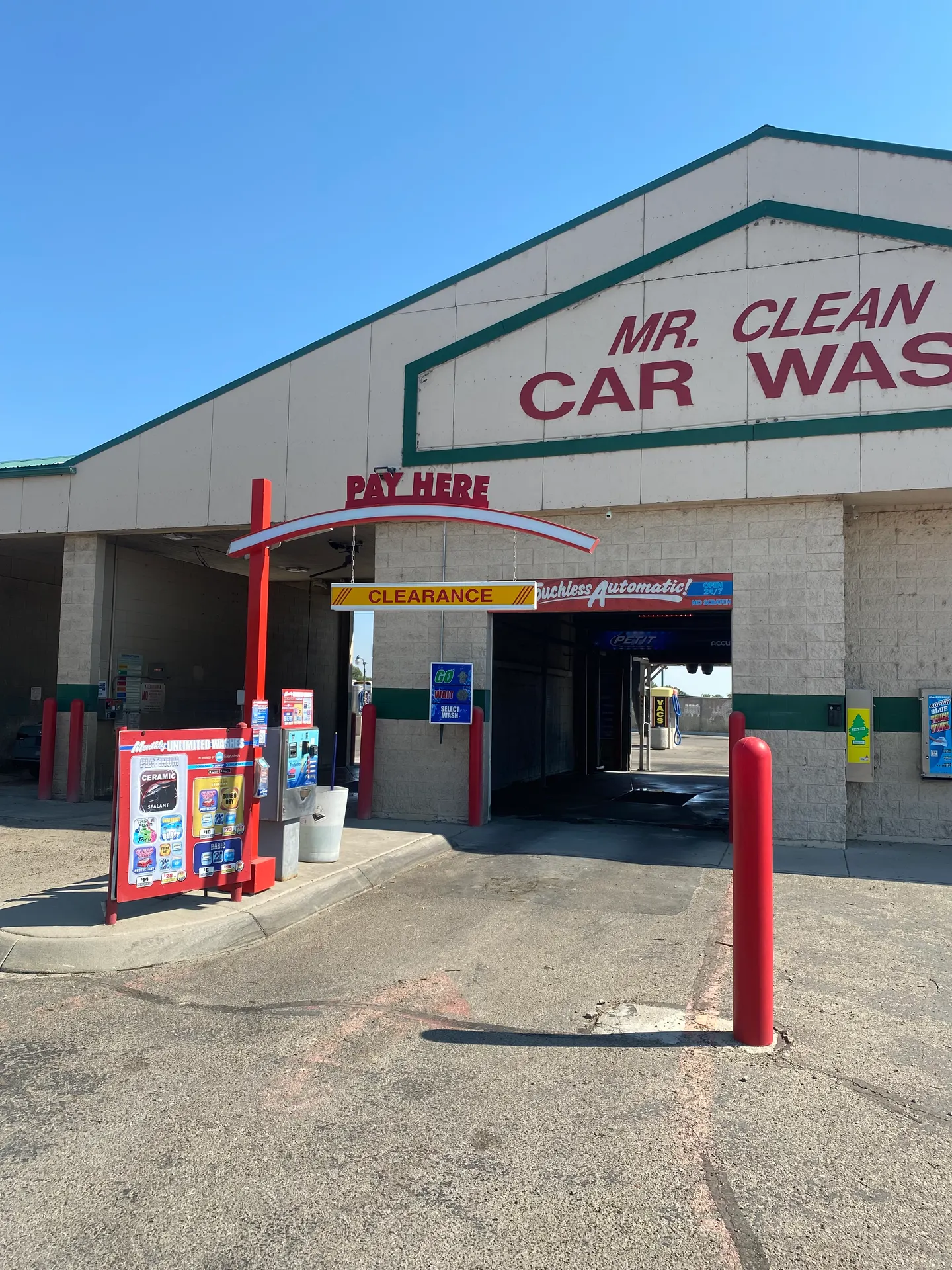
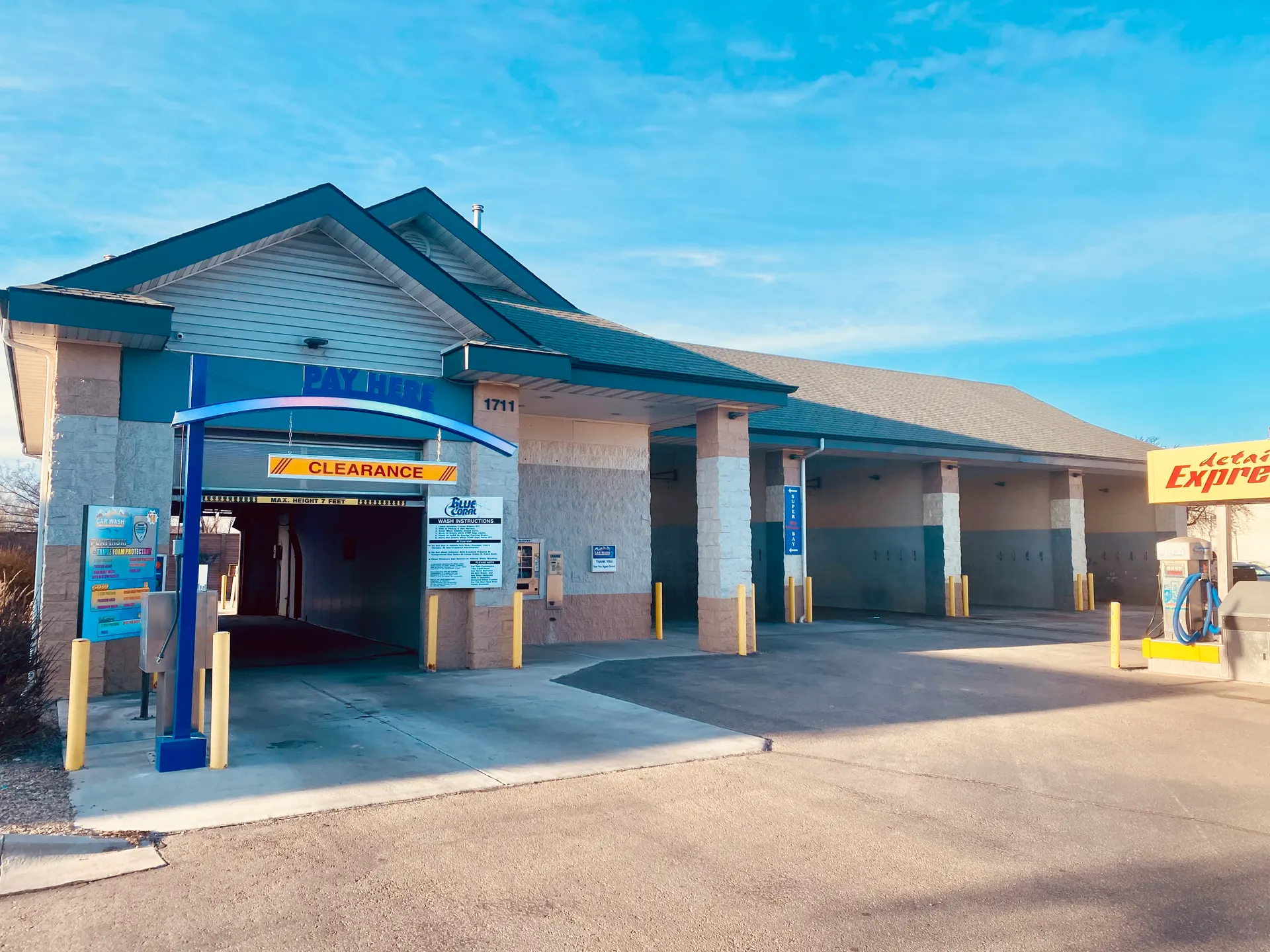
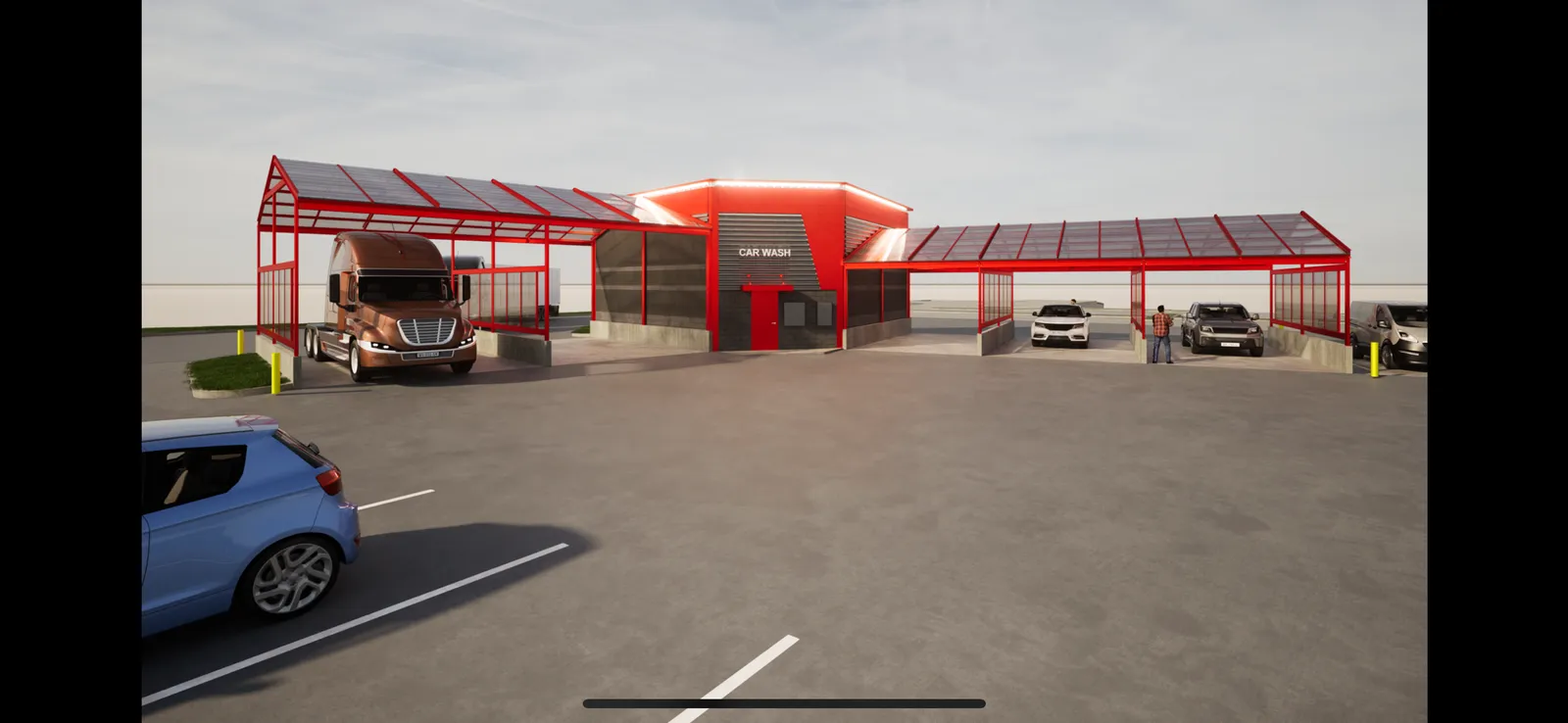
One prepaid card per vehicle, good at six locations across the valley today — with Mr Clean Car & Truck Wash, built for trucks and 18-wheelers, coming soon — and bays open around the clock so your trucks can wash between jobs instead of during them.
Six locations, one coming soon
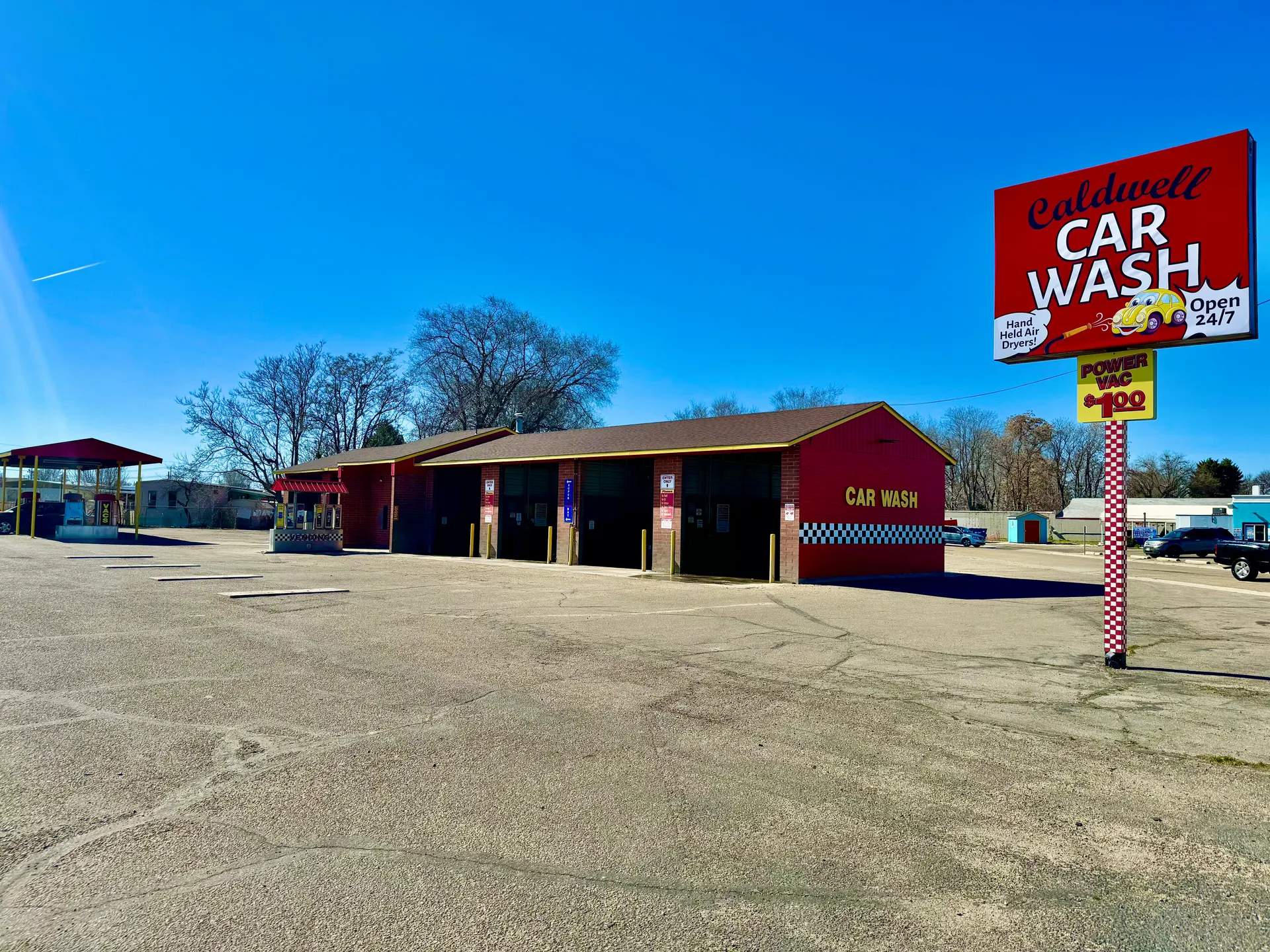
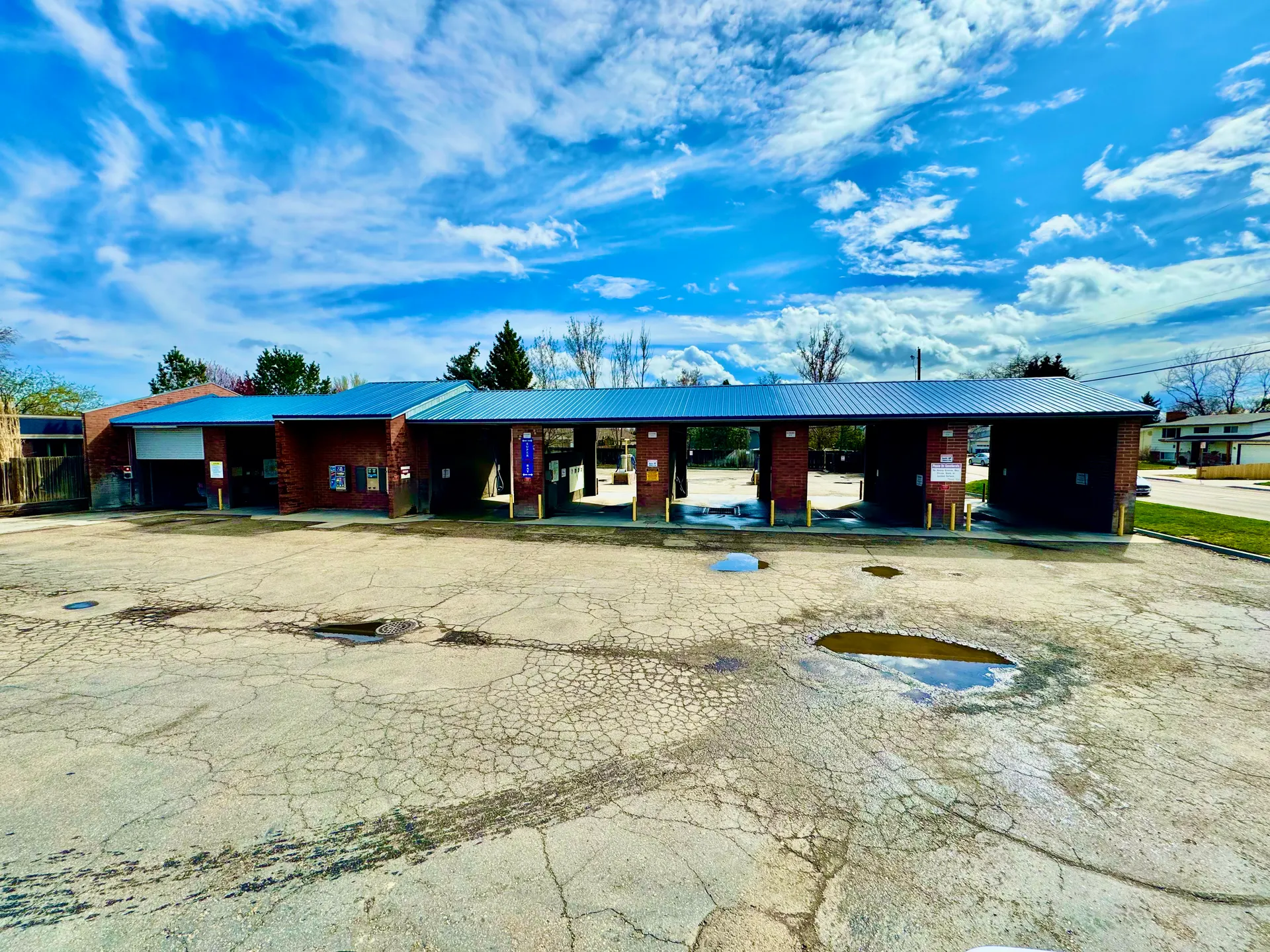
Where fleet cards work
Emmett and Homedale are outside the fleet card system for now. Mr Clean Car & Truck Wash will accept fleet cards once it opens.
Coming soon
Setup
Once your cards arrive
1Go to storecard.com and save it somewhere handy — you'll come back to it any time you need to manage a card. Select “Check balance” and enter the number off any card you received to get started.
2From the balance-check screen, create a login. Use the owner's email or a main company email address, in case someone else at the company ever needs to get in.
3Make sure at least two people at the company know the password. If an employee who set it up leaves and you can't get into their email, the login can't be reset for you.
4Once you're logged in, go to “Manage card.” Add each card you received as a gift card (naming each one after the vehicle is optional, but makes them easier to tell apart).
5Turn on auto-reload and assign a credit card to each one individually — every card holds its own balance, so auto-reload has to be set up per card, not once for the whole account.
6Choose an initial balance and a reload threshold. For example: load $50 onto a card and set it to reload when the balance hits $10, and it'll automatically add another $50, bringing it back up to $60.
7When you enter the billing address for the credit card on file, leave city and state blank.
Once everything above is set up, you're good to go — you shouldn't need to log back in to storecard.com unless you want to change the card on file or hand off login ownership to someone else.
24/7/365
The lights are on right now
Every bay, every location, every hour — including holidays.
See every location